
No more guessing — Just answers
Copper Goose Network Monitor learns what normal looks like on your own line — then, the moment something departs from it, tells you which box is at fault: your Wi-Fi, your router, the fibre box on the wall, or your ISP. Not a graph to interpret. A sentence, in plain English. It tracks daily and all-time usage too, and warns you before you run through a data cap.
Windows 10 & 11. One-time purchase, no subscription.
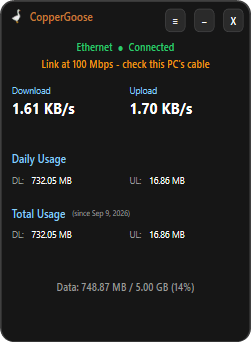
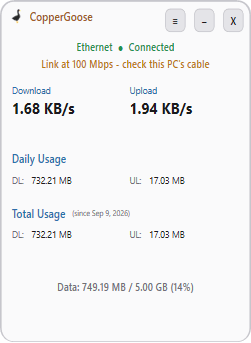
Most tools show you a graph. Copper Goose Network Monitor gives you an answer.
Consumer bandwidth monitors are good at telling you a slowdown happened. They’re bad at telling you why — or which piece of hardware to go and look at.
| Feature | Typical monitor | Copper Goose Network Monitor |
|---|---|---|
| Live upload / download speed | ||
| Alerts when the connection drops | ||
| Learns your line's normal, instead of fixed thresholds | ||
| Names which box is at fault | ||
| Tells your router apart from your ISP's line | ||
| Detects a failing Wi-Fi link | ||
| Says when other devices are filling the line | ||
| Spots an Ethernet cable that has dropped to half speed | ||
| Exportable warning log for your ISP | ||
| Custom data limits & usage totals |
It learns your line
Most tools measure you against your advertised / current speed and stay quiet on a line that has quietly halved.
Copper Goose watches your own connection while it is idle and builds a picture of what normal looks like — the speed it settles at, how far the latency wanders, jitter, how your router behaves under load. Warnings come from departures from that, which is why a slow rural connection is judged as fairly as a gigabit one.
It keeps a separate picture for every network you join, so a phone hotspot is never judged against your fibre, and moving between them does not affect the other.
It needs a little time to learn. On a new network it has nothing to compare against, so it stays cautious and sharpens over the first day or so of ordinary use. No configuration, no manual inputs.
Everything you need to understand your network
Names the faulty box
Wi-Fi, router, the fibre box on the wall, or the ISP. The result line says which, and what to check first.
Learns your line
Builds its own picture of normal for your connection, kept separately per network. Nothing to configure.
Catches weak Wi-Fi
It measures the link itself — and has flagged a failing connection while Windows still showed full bars.
Spots a busy line
When the slowdown is other devices on your network — or your ISP’s own network — it names that, rather than leaving you to guess.
A log for your ISP
Every warning with its time and duration, exportable as a report. Much harder to wave away than “it’s slow”.
Real-time speed monitoring
Live upload and download throughput, in a small window that lives in the tray and stays out of your way.
Data limits with warnings
Set your cap. Get told at 80% and again at 100%, in time to do something about it.
Daily & all-time totals
What you used today, and every month since you installed it, kept for a full year.
Light & dark
Follow Windows, or pick one and stay there. The whole app, not just the main window.
Download first, pay second
Download & install
Grab the free Windows app from the download page and run it.
Click Purchase Key
Copper Goose Network Monitor generates your code and takes you straight to checkout.
Pay once — 14 USD
Complete payment. No subscription, no recurring charge.
Activate
We email your activation key and you unlock the full app.
No subscription, no recurring fees. Try it free for 14 days, then buy your license once — backed by a 7-day money-back guarantee.